
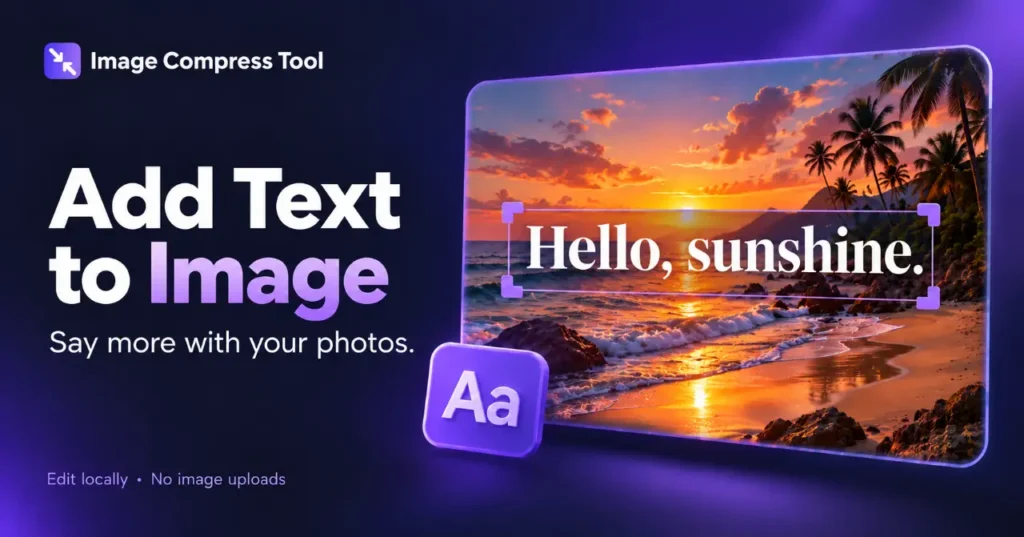
Use the Add Text to Image tool
- Choose an image, enter a caption and choose its font, size, colours and outline.
- Select Add text box. Drag the selected text or use X/Y percentages; use Update selected text to apply wording and style changes.
- Add more boxes if needed, then Prepare download and save a flattened copy.
To add text to an image, open the picture in an editor with text boxes, type your caption, position it and export a new copy. The best result depends as much on spacing and contrast as on the font you choose.
Add a caption step by step
- Choose the image and decide its final shape before adding text.
- Create a text box and write a short caption or label.
- Choose a readable font, size and alignment.
- Move the box away from important details and leave space at the edges.
- Add a background band or outline if the letters blend into the photo.
- Export and view the image at its intended display size.
Choose size for the final image
A 60-pixel caption on a 2400-pixel-wide photo becomes roughly 15 pixels tall when the picture is displayed at 600 pixels wide. Use that relationship to judge whether a title will be readable in a small preview. Check long words and line breaks after resizing.
Contrast beats decoration
A plain font on a solid band often reads better than elaborate lettering over a detailed scene. Light text needs a darker area behind it, and dark text needs a lighter area. A thin shadow may help, but it cannot fix every busy background. Give each text box a clear purpose instead of using several competing styles.
Export without rough lettering
PNG preserves the rendered pixels without lossy compression and is useful for diagrams and captions. JPG can work for photo-heavy designs, but strong compression may create fuzzy edges around letters. WebP can be effective when supported by the destination. Inspect the file after export, not only the editor preview.
How text becomes part of an image
The editor uses a font to draw letter shapes at specific coordinates. A flattened export stores those letters as pixels alongside the photo. It does not preserve a separately editable text box. Save an editable project or keep the caption text if you need later revisions.
Adding text, image to text and text to image
These phrases describe different tasks. Adding text places a caption on an existing picture. Image to text usually means OCR, which extracts words from a picture. Text to image commonly refers to creating an image from a prompt. Choose the workflow that matches the result you need.