
Blur & Pixelate Image
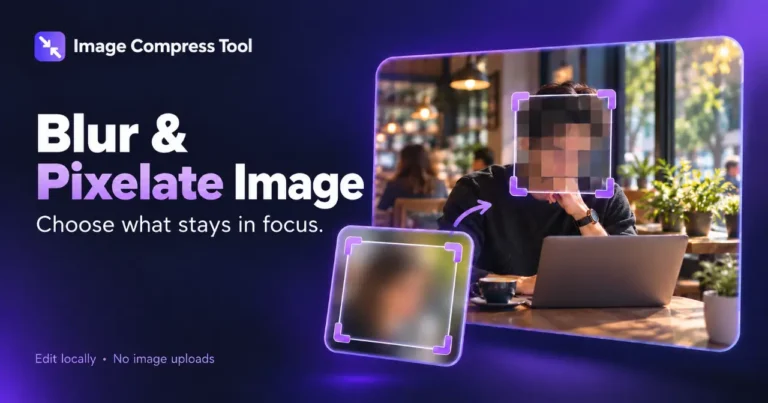
Blur or pixelate selected areas of an image in your browser. Adjust the effect and export a flattened copy. Photos stay on your device.
Your finished image stays in this tab. Choose compression settings, then process it below.
How to use Blur & Pixelate Image
Blur or pixelate selected areas of an image in your browser. Adjust the effect and export a flattened copy. Photos stay on your device.
- Choose your image and drag across the preview, or enter exact selection coordinates.
- Choose Blur, Pixelate or Opaque redaction. Set the radius or block size, then Apply to selection.
- Repeat for more areas. Prepare download and inspect the saved copy before sharing.
What to expect
Blur and pixelation can leave information recognisable. For sensitive text, cover the entire area using opaque redaction. Check other visible clues and metadata separately. The original stays unchanged.
Are images uploaded?
No. These tools use local browser processing and have no image-upload endpoint. The site can still use normal hosting logs and its existing Analytics setup.
Which images are supported?
Static JPG, PNG and WebP, up to 20 MB, 8 megapixels and 8,192 pixels per side. Animated images, SVG, HEIC, RAW, PDF and video are not supported.
Can I undo my edits?
Editing tools keep a limited recent history during the session. Use Undo and Redo. Closing or refreshing the page discards unsaved work.
What happens when I download?
Image editors export a new flattened file without overwriting your original. Colour tools let you copy colour values; palette extraction also provides a text download.
How blur, pixelation and redaction work
See how blur and pixelation replace detail in selected regions before a flattened copy is exported. Inspect the result before sharing sensitive images.
Blur
A separable box blur averages neighbouring pixels within the selected region. Premultiplied colour values handle transparency without dark halos.
Pixelation
The selection is reduced to a smaller grid and enlarged without smoothing, creating visible blocks.
Redaction
An opaque rectangle replaces the selected pixels in the exported copy. It does not remove identifying details outside the selection or inspect metadata.
Explore the details: Browser encodingImage formats — MDN
More image tools
Compress
Convert
Privacy
Edit
Background Remover
Edit images on your device
CROPCrop Image
Choose a shape or exact crop size
EDITPhoto Editor
Crop, adjust, add text and draw
TURNRotate & Flip Images
Rotate or mirror a photo
MARKWatermark Images
Add a text or logo watermark
HEALWatermark Remover
Repair small marks with healing and cloning
Create
Get more from this tool.
Step-by-step help for the images you are working with.
How to Pixelate an Image or Part of a Photo
Create a blocky pixelation effect on a photo or selected region. Learn block size, export choices and the limits of pixelation for hiding details.
Read the guideHow to Blur Part of a Picture: Faces, Text and Backgrounds
Learn how to blur selected areas of a photo, choose blur strength and check the export. Understand when solid redaction is safer than blur.
Read the guide