
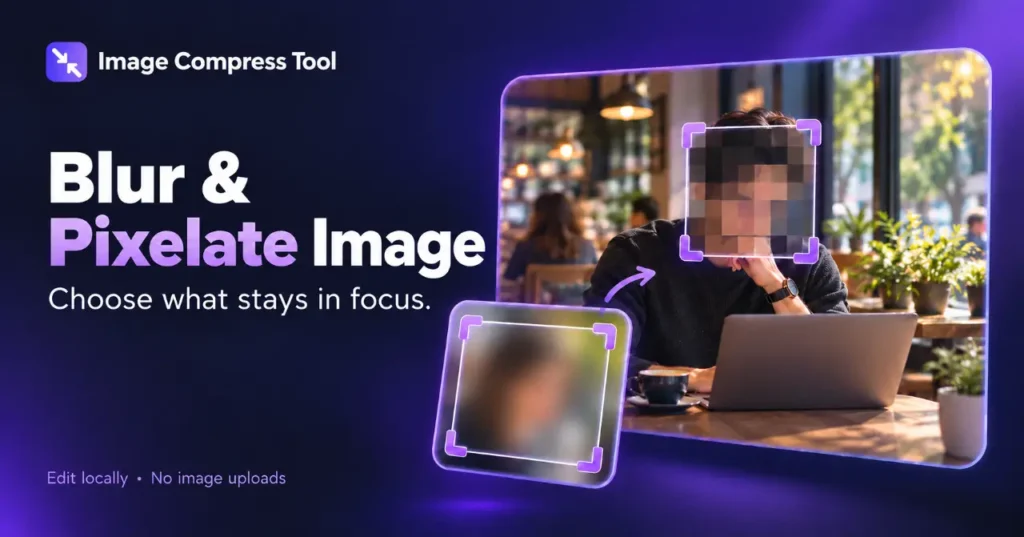
Use the Blur & Pixelate Image tool
- Choose your image and drag across the preview, or enter exact selection coordinates.
- Choose Blur, Pixelate or Opaque redaction. Set the radius or block size, then Apply to selection.
- Repeat for more areas. Prepare download and inspect the saved copy before sharing.
To blur part of a picture, select the area to soften, apply a blur effect and export a flattened copy. Use a small selection for a face or text block, or a larger selection for a background. The selection and blur strength both affect the result.
Blur a selected area
- Open a copy of the image in an editor with selective blur.
- Select the whole area you want to obscure, including its edges.
- Increase the blur gradually while viewing the image at full size.
- Check that details just outside the selection do not reveal the information.
- Export a flattened copy, reopen it and inspect the actual file.
Blurring a face or background
A face may need a larger selection than expected: hair, clothing and the surroundings can still identify someone. For a soft background effect, keep the subject outside the blurred selection and inspect its boundary for a visible halo. A rectangular blur is useful for simple blocks, while a detailed subject boundary needs a more precise mask.
Blur is not reliable redaction
A weak blur can leave text recognisable or allow someone to infer short numbers and familiar shapes. Pixelation has similar limitations. For sensitive information, replace the entire area with a fully opaque solid block or remove it with a crop, then export a flattened copy. Inspect the final pixels and check metadata separately.
For example, when sharing a screenshot of a message, consider the name, profile photo, address, notification previews and surrounding context—not only the sentence you first noticed.
How blur works
Blur combines information from nearby pixels so sharp transitions become softer. A larger radius blends a wider neighbourhood. Different blur algorithms weight those neighbours differently, so the same numeric setting can produce different results in different editors.
Blur versus pixelation
Blur creates smooth transitions. Pixelation produces visible blocks by representing a region with fewer samples. Neither is the same as removing the region from the file. Choose the appearance you need, and use opaque redaction when the goal is to hide sensitive details.
Check the file before sharing
Reopen the export at full size, look for missed corners and confirm that the edited area is part of the downloaded image. Keep the original private. If the photo contains embedded location or camera information, use the metadata tool as a separate step.