
Photo Collage Maker
Make a photo collage with a simple grid, borders and spacing. Arrange your images and download the finished collage without uploading your photos.
Your finished image stays in this tab. Choose compression settings, then process it below.
How to use Photo Collage Maker
Make a photo collage with a simple grid, borders and spacing. Arrange your images and download the finished collage without uploading your photos.
- Choose up to 12 photos. A two-column preview appears automatically.
- Set canvas dimensions, columns, spacing and background. Use the order buttons to rearrange photos.
- Choose Fill or Fit, then Build collage. Review the result and Prepare download.
What to expect
Fill uses a centred crop in each grid cell; Fit preserves the whole photo with surrounding space. Layouts use equal-sized cells. Source photos are sampled to at most 1,800 pixels on their longest side to control memory use.
Are images uploaded?
No. These tools use local browser processing and have no image-upload endpoint. The site can still use normal hosting logs and its existing Analytics setup.
Which images are supported?
Static JPG, PNG and WebP, up to 20 MB, 8 megapixels and 8,192 pixels per side. Animated images, SVG, HEIC, RAW, PDF and video are not supported.
Can I undo my edits?
Editing tools keep a limited recent history during the session. Use Undo and Redo. Closing or refreshing the page discards unsaved work.
What happens when I download?
Image editors export a new flattened file without overwriting your original. Colour tools let you copy colour values; palette extraction also provides a text download.
How photo collages are made
See how images are scaled into a grid, cropped or fitted to cells, and drawn with your chosen spacing and background.
Grid layout
Canvas size, column count and gaps determine each photo cell. Rows are calculated from the number of selected images.
Fit and fill
Fit uses the smaller scale to keep the full photo. Fill uses the larger scale and clips the centred image to its cell.
Output
The grid, photos and background become one canvas before encoding. A large output may upscale the sampled sources; check quality at the intended size.
Explore the details: Browser encodingImage formats — MDN
More image tools
Compress
Convert
Privacy
Edit
Background Remover
Edit images on your device
CROPCrop Image
Choose a shape or exact crop size
EDITPhoto Editor
Crop, adjust, add text and draw
TURNRotate & Flip Images
Rotate or mirror a photo
MARKWatermark Images
Add a text or logo watermark
HEALWatermark Remover
Repair small marks with healing and cloning
Create
Get more from this tool.
Step-by-step help for the images you are working with.
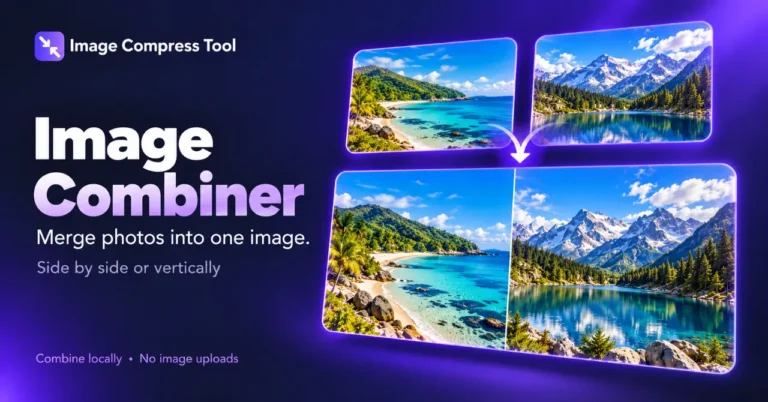
How to Combine Images Side by Side or Vertically
Merge photos into one image with a horizontal or vertical layout, adjustable spacing and a transparent or coloured background.
Read the guide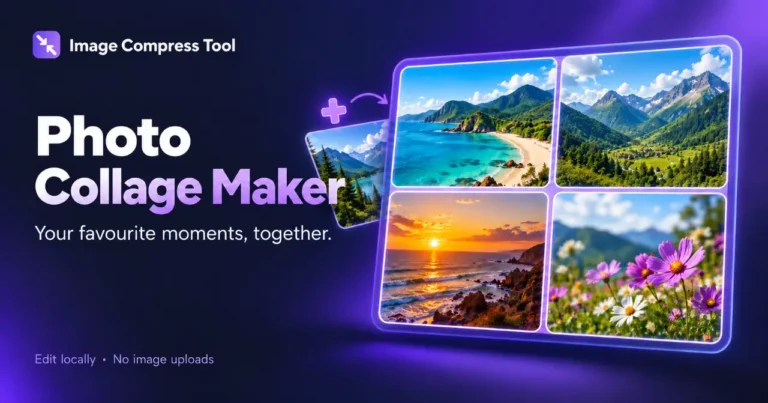
How to Make a Photo Collage with a Clean Grid
Arrange photos in a collage with consistent spacing and useful export dimensions. Learn cropping, grid sizes, borders and compression for sharing.
Read the guide