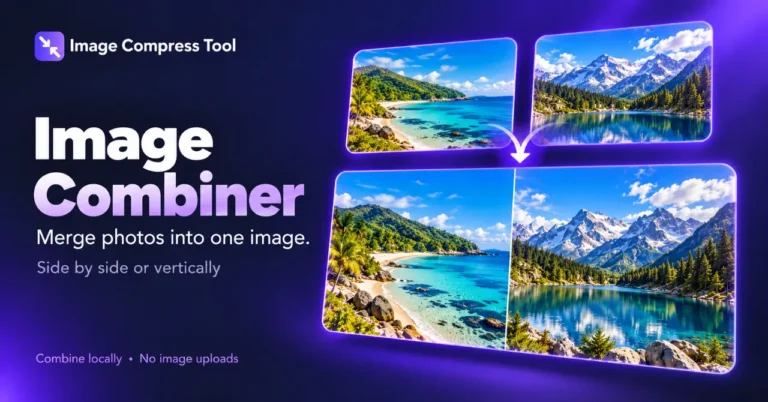
Image Combiner
Combine images side by side or vertically into one picture. Merge JPG, PNG and WebP photos in your browser with spacing, alignment and background controls. No image uploads.
Your finished image stays in this tab. Choose compression settings, then process it below.
How to combine images into one picture
Use this image merger for side-by-side comparisons, photo strips and stacked screenshots. Keep each picture’s proportions and choose exactly how they line up.
- Choose up to 12 static JPG, PNG or WebP images, or try the local sample.
- Choose horizontal or vertical layout, size, spacing, alignment and background. Reorder the filenames, then choose Combine images.
- Check the preview, choose PNG, JPG or WebP and Prepare download. Keep PNG or WebP for transparency.
What to expect
The combiner joins complete images without cropping or stretching. Smaller images stay smaller unless you enable enlargement. Output is limited to 8 megapixels and 8,192 pixels per side; inputs are limited to 24 megapixels and 80 MB total. Reduce the size or combine fewer images if needed. Export makes one flattened image and does not copy source metadata.
Is an image combiner the same as an image merger?
For this tool, yes: both mean joining multiple pictures into one image. It does not stitch panoramas, remove overlapping screenshot sections or blend exposures.
Can I combine images without uploading them?
Yes. Reading, sizing and joining happen in your browser. Your selected photos are not sent to our server.
Can I put two photos side by side?
Choose both photos and use the horizontal layout. Set spacing to zero for touching edges, then choose Combine images.
How do I combine pictures vertically?
Choose the vertical layout to place images one above another. The size field sets their maximum width.
Why are some images smaller?
By default, images are only reduced to fit the size setting. Enable enlargement to match their height or width; enlarging a small source can look softer.
How is this different from Collage Maker?
Image Combiner creates a continuous horizontal or vertical strip with each image’s proportions intact. Collage Maker arranges photos in grid cells.
How the image combiner works
See how images are decoded into pixels, arranged side by side or vertically, and encoded as one downloadable image. Spacing, alignment and background settings control the final layout.
Decode and scale
Each selected file is decoded into pixels in your browser. A scale factor sets its maximum cross-axis size while keeping its proportions. Enlargement is off by default.
Measure and arrange
Horizontal output adds the image widths and gaps; vertical output adds heights and gaps. The largest cross-axis dimension sets the other canvas edge. Alignment positions smaller images at the start, centre or end.
Encode one image
The browser draws each image on a new canvas and encodes one PNG, JPG or WebP. Transparent gaps remain transparent in PNG/WebP; JPG fills them white. Original metadata is not copied, and no image is uploaded.
Explore the details: Browser encodingImage formats — MDN
More image tools
Compress
Convert
Privacy
Edit
Background Remover
Edit images on your device
CROPCrop Image
Choose a shape or exact crop size
EDITPhoto Editor
Crop, adjust, add text and draw
TURNRotate & Flip Images
Rotate or mirror a photo
MARKWatermark Images
Add a text or logo watermark
HEALWatermark Remover
Repair small marks with healing and cloning
Create
Get more from this tool.
Step-by-step help for the images you are working with.