
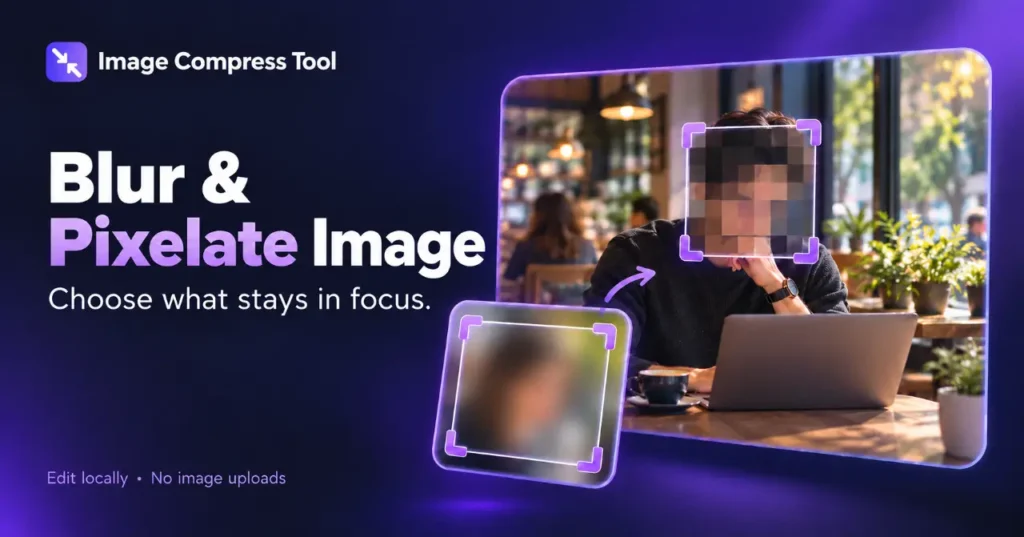
Use the Blur & Pixelate Image tool
- Choose your image and drag across the preview, or enter exact selection coordinates.
- Choose Blur, Pixelate or Opaque redaction. Set the radius or block size, then Apply to selection.
- Repeat for more areas. Prepare download and inspect the saved copy before sharing.
Pixelating an image replaces fine detail with larger visible blocks. You can apply the effect to a whole photo for a stylised look or to a selected region. Larger blocks hide more visual detail, but pixelation should not be treated as secure redaction.
Pixelate a photo step by step
- Keep the original and select a working copy.
- Choose the entire image or draw a selection around the area to pixelate.
- Increase block size until you get the appearance you want.
- Check the edges of the selection and the result at normal viewing size.
- Export a flattened image and inspect the downloaded copy.
What block size means
On a 1000-pixel-wide picture, blocks around 10 pixels wide produce roughly 100 blocks across the image. Larger blocks create a coarser pattern. Small blocks may leave faces or text surprisingly recognisable, especially when the original shapes are familiar.
How pixelation works
One common method reduces a selected region to a much smaller pixel grid and enlarges it again without smoothing. Each sample becomes a visible block. Another method replaces each block with a representative colour. The exact appearance depends on sampling and the source image.
Pixelation, pixel art and resizing are different
A pixelation effect makes a photo blocky. Pixel art usually involves deliberate shapes, edges and a limited palette; simply pixelating a photograph does not give the same control. Reducing pixel dimensions makes a file’s grid smaller and can be done with smooth resampling, without a blocky visual effect.
Can pixelation hide private information?
Do not rely on it for confidential text, short identifiers or other sensitive details. Even a flattened pixelated region may preserve enough structure to guess its contents. A fully opaque replacement or a crop is a better choice for removing visible information. Check the surrounding context and metadata too.
Choose the right export
PNG can preserve crisp block boundaries. Strong JPG compression may add noise around those edges. If you reduce the image afterward, the blocks may blend together, so check the final display size as well as the large editor preview.
Keep only the edited copy in the files you share, and retain the original separately if you want to revise the effect later.