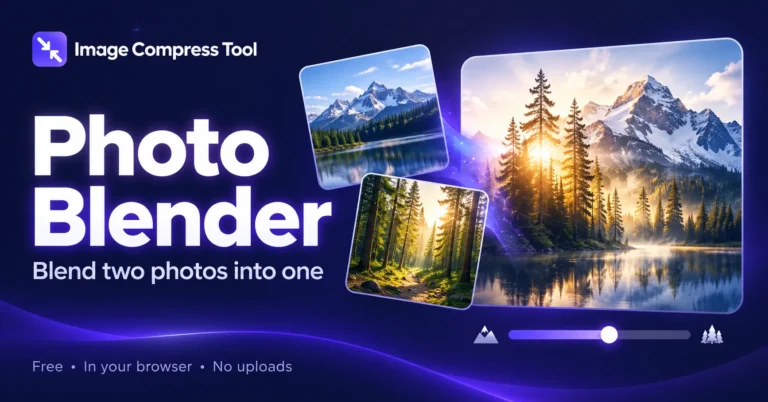
Photo Blender
Blend two photos into one image online. Adjust opacity, blend modes and gradient fades, then download JPG, PNG or WebP. Free, with no image uploads.
Up to 15 MB and 16 megapixels per photo. Animated images use a still frame. Photos stay in this tab.
Drag the preview to move the selected photo, or use the position controls.
Blend your photos
Download your blend
Choose two photos to begin.
PNG and WebP keep transparent areas. JPG fills them with white. New exports do not copy the source photos’ metadata. Download your work before leaving this page.
Blend two photos into one image
Create a double exposure, soften an overlay or fade one photo into another. The photos are decoded and blended locally in your browser.
- Choose a background photo and an overlay photo. The background sets the initial output dimensions.
- Adjust overlay strength, choose a blend mode and try a gradient fade. Select either photo to move, scale or rotate it.
- Set your download dimensions and format, prepare the result and download it before leaving the page.
What to expect
Fill canvas crops edges to cover the output. Fit whole photo preserves the full photo and may leave transparent areas. JPG fills transparency with white. Exports do not copy source metadata.
What is the difference between blending and combining photos?
Blending overlaps photos and mixes their pixels. Image Combiner arranges photos beside or above one another.
Are my photos uploaded?
No. Photo files are opened, blended and exported on your device.
Can I make a double exposure?
Yes. Try Screen or Soft Light, then adjust opacity and placement. The effect depends on the brightness and contrast of both photos.
Can I choose the output size?
Yes. Set width and height from 1 to 4096 pixels each. Changing the canvas shape changes how the photos fit; review the preview before downloading.
How photo blending works
Two decoded photos become a single flattened image through local Canvas compositing.
Position each photo
Each source is scaled to fill or fit the canvas, then translated and rotated. The original files remain unchanged.
Mix the pixels
Normal uses the overlay opacity to mix pixels. Multiply darkens overlapping colours; Screen lightens them. Overlay and Soft Light adjust contrast based on both photos.
Apply a gradient fade
A transparent-to-opaque mask changes the overlay’s visibility across the canvas. Reverse fade switches the direction; the strength slider controls the whole overlay.
Encode the result
The browser encodes the flattened canvas as PNG, JPG or WebP. PNG keeps transparency; JPG uses a white background. The JPG/WebP quality setting changes the encoding, not the strength of the blend.
Explore the details: Browser encodingImage formats — MDN
More image tools
Background Remover
Remove a plain background or cut out a portrait
MERGEImage Combiner
Merge photos horizontally or vertically
PXImage Resizer
Resize photos to custom dimensions or preset sizes
JPGJPG Compressor
Compress JPG images in your browser, compare the result and download a batch as a ZIP.
GRIDPhoto Collage Maker
Arrange photos in a clean grid
EDITPhoto Editor
Crop, adjust, add text and draw
Get more from this tool.
Step-by-step help for the images you are working with.