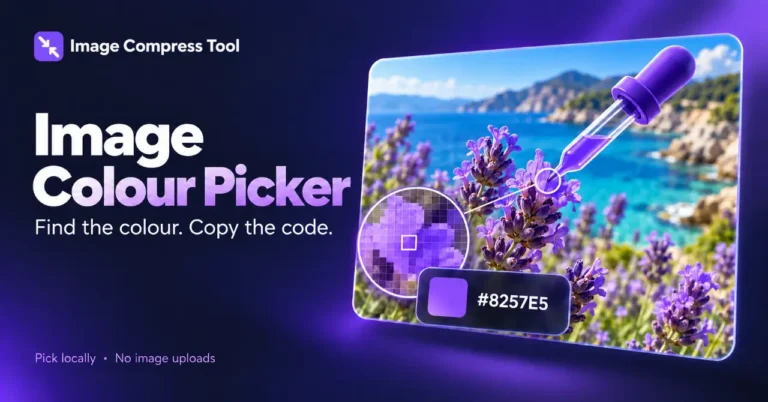
Image Colour Picker
Pick a colour from an image and copy its HEX or RGB value. Sample your photos locally in your browser without uploading the image.
Your finished image stays in this tab. Choose compression settings, then process it below.
How to use Image Colour Picker
Pick a colour from an image and copy its HEX or RGB value. Sample your photos locally in your browser without uploading the image.
- Choose an image.
- Click a pixel in the preview, or enter its X/Y coordinates and select Sample pixel.
- Read its HEX, RGB and alpha values. Select Copy HEX to reuse the colour.
What to expect
The sampled colour comes from the decoded canvas image. Transparency is reported separately. A fully transparent pixel has no visible colour, and colour profiles or display settings can affect appearance.
Are images uploaded?
No. These tools use local browser processing and have no image-upload endpoint. The site can still use normal hosting logs and its existing Analytics setup.
Which images are supported?
Static JPG, PNG and WebP, up to 20 MB, 8 megapixels and 8,192 pixels per side. Animated images, SVG, HEIC, RAW, PDF and video are not supported.
Does it upload my photo to identify colours?
No. Pixel sampling and palette extraction happen locally in the browser.
How image colour sampling works
See how the browser reads a pixel from your decoded image and expresses its colour as HEX and RGB values.
Coordinate mapping
The pointer location in the scaled preview maps back to the corresponding source pixel.
Channels
The canvas exposes red, green, blue and alpha values. HEX encodes the three colour channels; alpha is shown separately.
Copying
Copy HEX uses the browser clipboard when available. If access is unavailable, the value remains visible for manual copying.
Explore the details: Browser encodingImage formats — MDN
More image tools
Compress
Convert
Privacy
Edit
Background Remover
Edit images on your device
CROPCrop Image
Choose a shape or exact crop size
EDITPhoto Editor
Crop, adjust, add text and draw
TURNRotate & Flip Images
Rotate or mirror a photo
MARKWatermark Images
Add a text or logo watermark
HEALWatermark Remover
Repair small marks with healing and cloning
Create
Get more from this tool.
Step-by-step help for the images you are working with.