
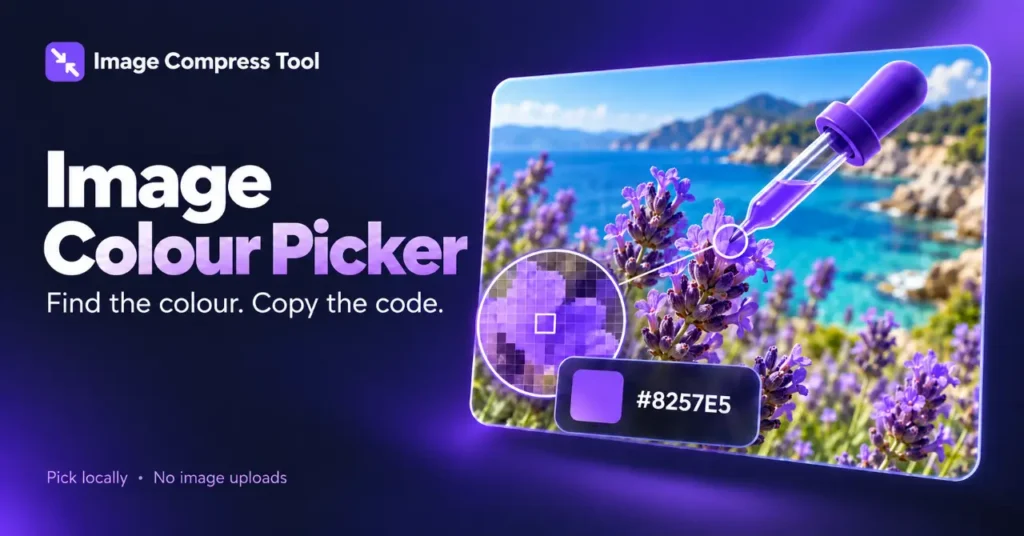
Use the Image Colour Picker tool
- Choose an image.
- Click a pixel in the preview, or enter its X/Y coordinates and select Sample pixel.
- Read its HEX, RGB and alpha values. Select Copy HEX to reuse the colour.
An image colour picker samples a pixel and reports its colour, often as HEX and RGB values. It is useful for matching a heading to a photo, finding a background colour or recording a colour used in a graphic.
Pick a colour from a photo
- Use the original image rather than a screenshot when possible.
- Open it in an image colour picker and zoom into the area you want.
- Select a point away from shadows, highlights and anti-aliased edges if you need a representative flat colour.
- Copy the HEX or RGB value.
- Test the colour in your actual design and check nearby samples if it looks wrong.
HEX and RGB describe the same channels
In ordinary 8-bit RGB, red, green and blue channels range from 0 to 255. A six-digit HEX code writes each channel as two hexadecimal digits. For example, RGB(128, 64, 255) is #8040FF: 80 represents 128, 40 represents 64 and FF represents 255.
Why nearby pixels give different colours
A photograph rarely contains one perfectly uniform colour. Lighting, texture and compression change the pixel values across a surface. Text and shape edges also contain blended pixels that make them appear smooth. Sample inside the shape rather than on the edge when you want its fill colour.
How colour sampling works
A canvas-based picker reads the red, green, blue and alpha values at the selected location. It must map the pointer position in the displayed preview to the correct pixel in the source canvas. A picker may instead average a small region; that is different from reporting one exact pixel.
Transparency and colour profiles
A semitransparent pixel can look different on white and black backgrounds. Check whether a picker reports its underlying colour or the composited appearance. Colour profiles and conversion to the browser’s working colour space can also affect values. A sampled code is not a guarantee of identical appearance on every screen or printer.
One colour or a whole palette?
Use a picker when you know which point you want. Use palette extraction when you want several representative colours from the photo. Neither automatically chooses readable text colours for every background; test those combinations in the intended design.
Technical reference: MDN’s guide to reading canvas pixels.