
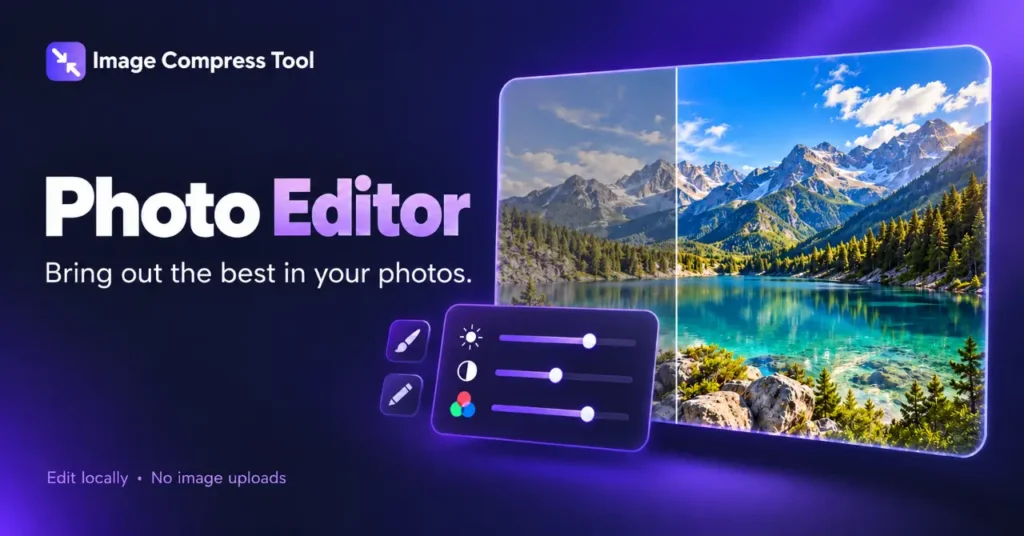
Use the Photo Editor tool
- Choose a photo. Use crop and orientation controls to set its composition.
- Apply brightness, contrast, saturation or a filter. Add captions and draw on the preview as needed.
- Use Undo or Redo to review edits. Choose an output format and Prepare download.
A useful photo edit starts with a clear goal: improve the composition, make the subject easier to see or prepare a picture for sharing. Work from the original, make small changes and compare the result before exporting.
A practical photo editing order
- Duplicate the original so you can return to it.
- Rotate or straighten the picture and choose the crop.
- Adjust brightness until the subject is clear without losing bright detail.
- Adjust contrast and saturation gradually.
- Add any text or drawing after the composition is settled.
- Resize for the destination, export once and compress the final copy if necessary.
Brightness, contrast and saturation
Brightness changes how light or dark the picture looks. Contrast changes the separation between darker and lighter tones. Saturation changes colour intensity. Increasing all three can make a preview look dramatic while losing texture in highlights, shadows or skin tones.
Try one control at a time. If a white shirt loses its folds, reduce the brightening. If dark hair becomes one solid patch, reduce contrast. If faces look orange, reduce saturation rather than trying to correct the problem with another strong filter.
Use the original size as your starting point
A 4000 × 3000 photo has more editing room than a small screenshot of that photo. Work on the larger source and resize near the end. Enlarging a small image can produce more pixels, but it does not reliably recover detail that was never recorded.
How browser photo editing works
A browser can decode a selected image into pixels and draw them on a canvas. Geometric operations change where those pixels are placed. Colour adjustments change their values. When you export, an encoder turns the edited pixel grid into a JPG, PNG or WebP file. Local processing depends on the particular editor; merely opening a tool in a browser does not prove it avoids uploads.
Export a useful copy
Choose JPG for a broadly compatible photographic copy, PNG for transparency or graphics, and WebP when the destination supports it. Keep enough pixels for the intended display. A large camera original is usually unnecessary for a small website thumbnail, while a print needs different preparation.
Why did the edited photo get bigger?
The new format or quality setting may store more data than the source. Added text and fine texture can also change how well it compresses. Compare dimensions, format, appearance and bytes rather than assuming every edit makes a file smaller.