
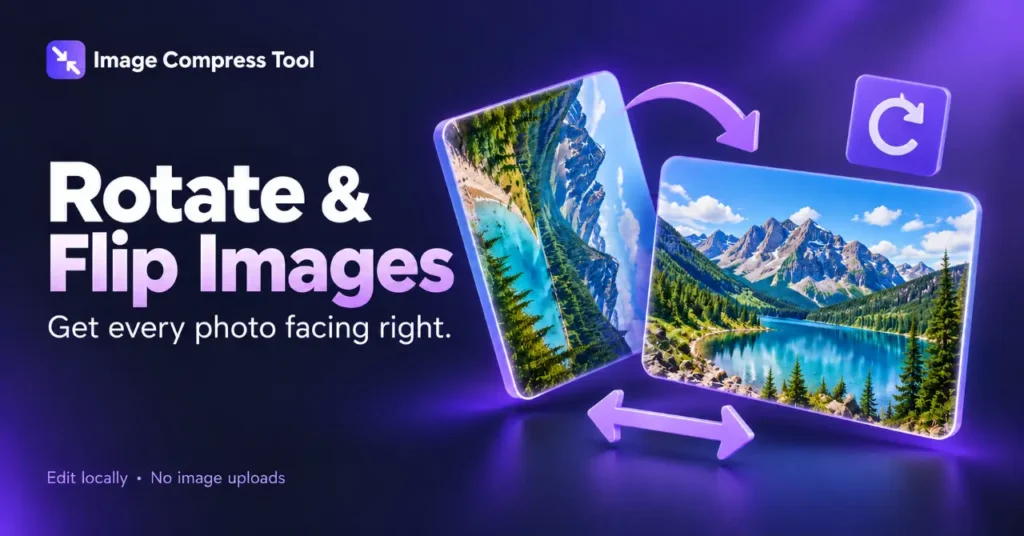
Use the Rotate & Flip Images tool
- Choose an image or Try a sample.
- Use Rotate left or Rotate right for quarter-turns. Use Flip horizontal or Flip vertical for reflections.
- Review the preview, undo if necessary, then Prepare download.
Use the Straighten section for custom angles from −180 to 180 degrees. Choose Expand to keep all corners or Keep size to crop rotated edges. PNG and WebP retain empty corners as transparency.
To rotate an image, turn it clockwise or anticlockwise until its orientation is correct, then export a copy. A quarter-turn fixes a sideways photo. A small-angle rotation straightens a tilted horizon but needs extra space or a crop around the edges.
Rotate a sideways photo
- Open a copy of the image in an editor with a rotate control.
- Turn it 90 degrees clockwise or anticlockwise.
- Use a second quarter-turn for an upside-down image if needed.
- Check that the entire picture is visible and export the result.
A 1200 × 800 landscape photo becomes 800 × 1200 after a 90-degree turn. Its width and height swap. If a tool keeps the original canvas instead, part of the rotated picture may be cut off.
Straighten a tilted horizon
Use a small rotation and compare the horizon with a horizontal guide. The rotated rectangle no longer fits neatly inside its original bounds. Choose between expanding the canvas to retain the corners or cropping the result to fill a clean rectangle.
For example, straightening a landscape by a few degrees may remove a little sky and foreground when cropped. Leave extra room around the subject when taking photos you expect to straighten later.
What happens to empty corners?
A rotated image can leave empty areas around the edges. PNG and suitable WebP exports can keep these areas transparent. JPG requires a background colour. Check which background is used before downloading, especially if the image will sit on a dark website.
How rotation works
Rotation changes each point’s position around a chosen centre. Quarter-turns can map pixels directly onto a new grid. Other angles need resampling because many new pixel positions fall between source pixels. Exporting through a canvas also encodes a new file, so a JPG export is not automatically a lossless rotation.
Rotation or flipping?
Rotation turns the whole picture. Flipping reflects it like a mirror and changes left and right, or top and bottom. If lettering looks backwards, a horizontal flip may be the operation you need rather than another rotation.
Keep the original and do all required edits before final compression to avoid repeated lossy exports.