
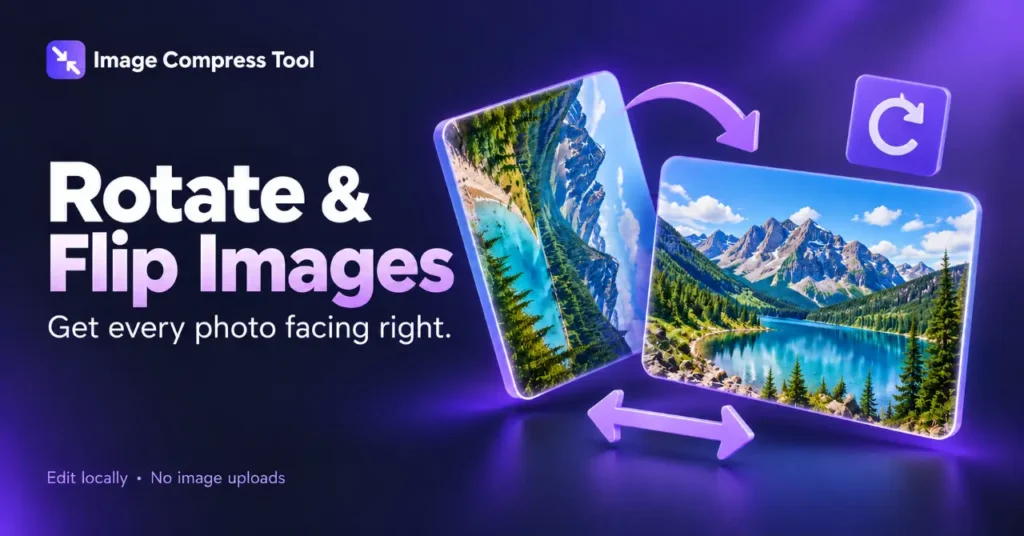
Use the Rotate & Flip Images tool
- Choose an image or Try a sample.
- Use Flip horizontal for a mirror image or Flip vertical for a top-to-bottom reflection.
- Review the preview, undo if necessary, then Prepare download.
This tool uses quarter-turns only. The small-angle straightening discussion below explains a separate operation that this version does not offer.
Flipping an image creates a reflection. A horizontal flip swaps the left and right sides, like a mirror. A vertical flip swaps the top and bottom. Neither operation needs to change the image’s width or height.
How to mirror a photo
- Keep the original and open a copy in an editor that supports flipping.
- Choose horizontal flip to reflect the picture from left to right.
- Choose vertical flip only when you need a top-to-bottom reflection.
- Check any lettering, logos and directional details.
- Export a new copy and inspect it outside the editor.
Horizontal versus vertical flip
If a person is on the left side of a photo, a horizontal flip puts them on the right. A vertical flip instead moves the upper part of the scene to the bottom. Applying both horizontal and vertical flips produces the same geometric orientation as a 180-degree rotation.
Fix mirrored lettering carefully
A selfie preview may look different from the saved photo. Check the downloaded source before changing it. If all the text in that image is backwards, a horizontal flip can restore its reading direction. It also flips everything else in the frame, including clothing, signs and the scene.
If only one inserted text box is backwards, correct that layer in the editor instead of reflecting the whole photograph. A flattened image no longer has separate text layers to select.
How flipping works
For an image that is W pixels wide, a horizontal reflection maps source column x to column W − 1 − x. Vertical reflection applies the equivalent operation to rows. The pixel grid keeps the same dimensions. A browser editor can perform this with a reflected drawing transform.
Does flipping reduce quality?
The reflection itself does not require inventing extra detail. However, exporting a new JPG can introduce another lossy encoding pass. Use a suitable lossless output when preserving exact rendered pixels matters, and keep the original.
Flipping does not compress a photo
The output size depends on the format and encoder settings. A reflected image can be larger or smaller even though its dimensions are unchanged. Compress the finished copy only after you are happy with its orientation.