
To blend two photos together, place one photo over another and adjust how much of the overlay is visible. Use the Photo Blender below to do this without uploading your photos.
Blend your photos
Blend two photos into one image online. Adjust opacity, blend modes and gradient fades, then download JPG, PNG or WebP. Free, with no image uploads.
Up to 15 MB and 16 megapixels per photo. Animated images use a still frame. Photos stay in this tab.
Drag the preview to move the selected photo, or use the position controls.
Blend your photos
Download your blend
Choose two photos to begin.
PNG and WebP keep transparent areas. JPG fills them with white. New exports do not copy the source photos’ metadata. Download your work before leaving this page.
Blend two photos in five steps
- Choose your background and overlay JPG, PNG or WebP photos.
- Start with Normal mode and 50% overlay strength.
- Select each photo and adjust its position, scale and rotation. Use Fill canvas to cover the edges or Fit whole photo to keep the full picture.
- Try a horizontal or vertical gradient fade. Reverse it if the other side should show through.
- Choose output dimensions and PNG, JPG or WebP, then prepare and download the result.
A blending example: lake + forest
These AI-generated sample photos demonstrate a real blend. The saved result below was generated by the same Canvas renderer used in Photo Blender, with Normal mode, 50% overlay strength and no gradient fade.
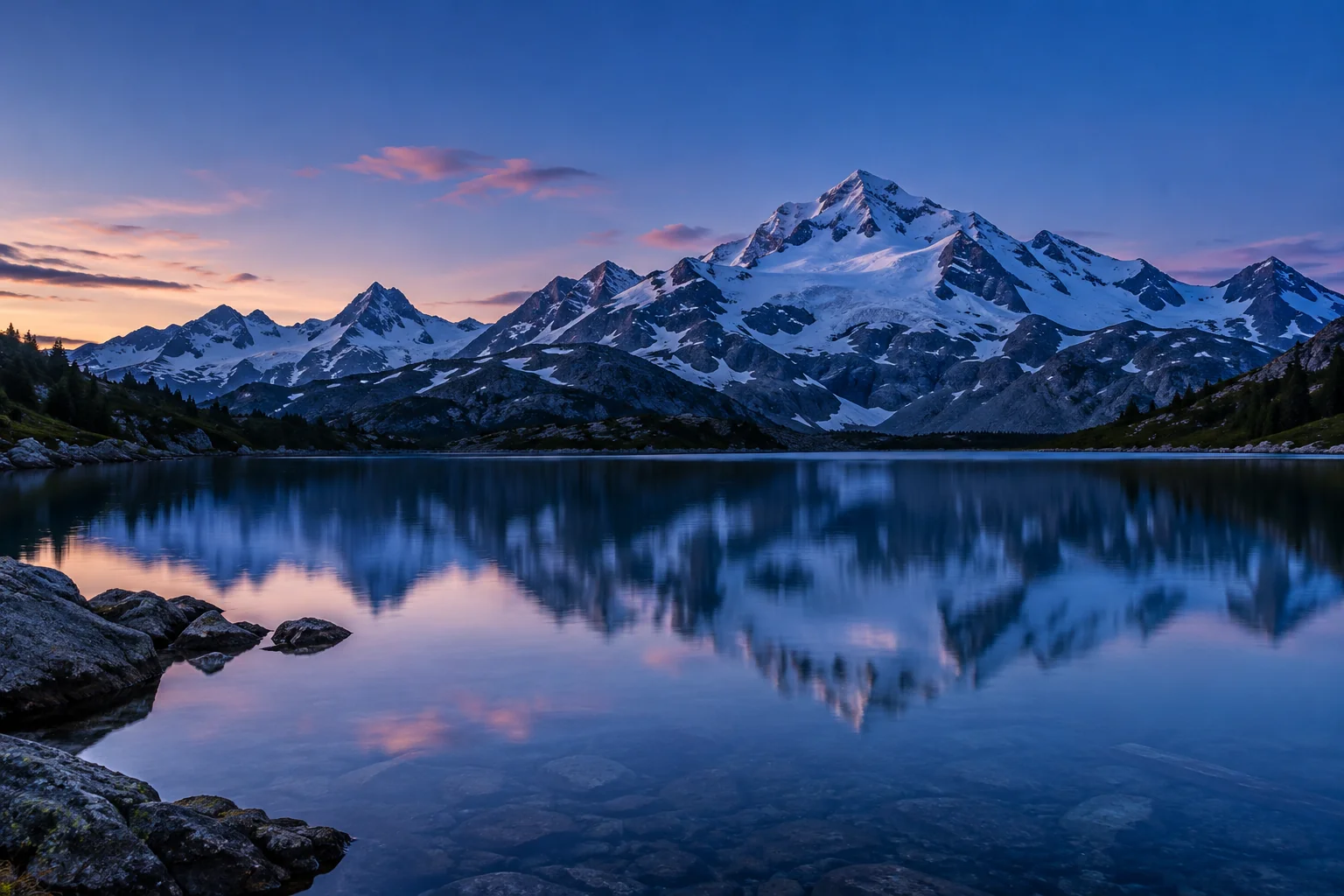
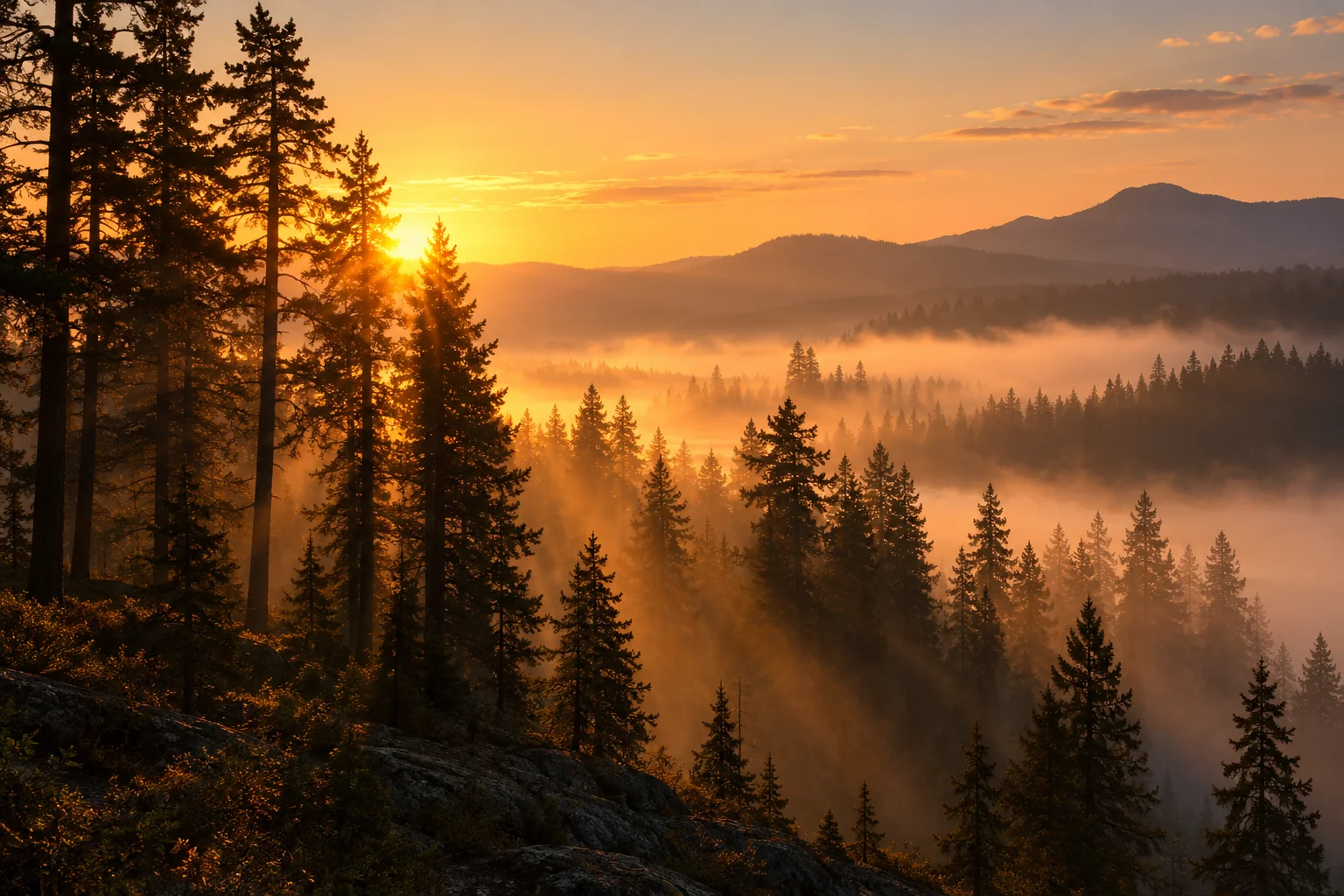
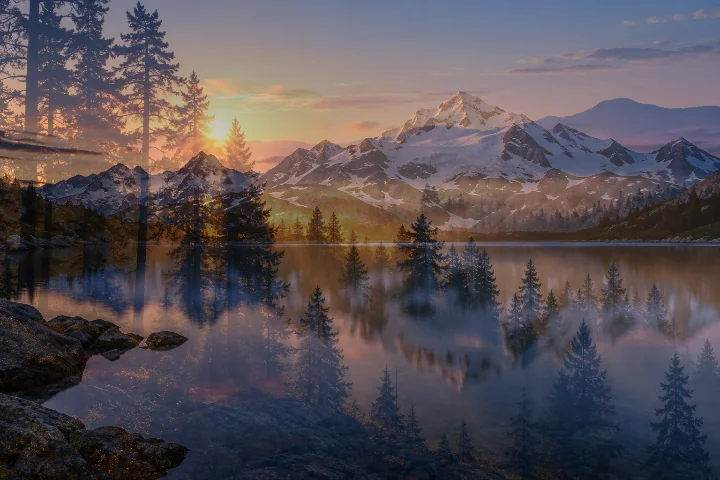
Both photos are visible in the result. Try changing overlay strength in the tool above to favour one photo.
Choose a blend mode
Normal mixes the overlay with the background using opacity. Multiply gives a darker result. Screen produces a lighter result and often works well for double exposures. Overlay increases contrast, while Soft Light gives a gentler effect. Try the same photos at different strengths and compare the preview.
How to make a double exposure
Pair a photo with strong light and dark shapes with a detailed landscape. Try Screen, then reduce strength until both images remain readable. Move or enlarge the overlay to place important details within the composition. This tool blends complete photos; it does not automatically cut out a person or subject.
Why are there empty edges?
Fit whole photo, rotation and moving a photo can reveal transparent areas. Use Fill canvas, enlarge the photo or adjust the position. PNG and WebP retain transparency. JPG fills uncovered areas with white.
Save your result
Choose PNG for transparency or JPG for a photo with no transparent areas. WebP is another option where supported. Quality affects JPG/WebP file encoding, not blend strength. Exports are flattened and do not copy source metadata. Keep your original photos; the editor does not autosave this project.
Blend or combine?
Use Photo Blender for overlapping photos. Use Image Combiner for a side-by-side arrangement, or Photo Editor for other adjustments.
Behind the result
Two decoded photos become a single flattened image through local Canvas compositing.
Position each photo
Each source is scaled to fill or fit the canvas, then translated and rotated. The original files remain unchanged.
Mix the pixels
Normal uses the overlay opacity to mix pixels. Multiply darkens overlapping colours; Screen lightens them. Overlay and Soft Light adjust contrast based on both photos.
Apply a gradient fade
A transparent-to-opaque mask changes the overlay’s visibility across the canvas. Reverse fade switches the direction; the strength slider controls the whole overlay.
Encode the result
The browser encodes the flattened canvas as PNG, JPG or WebP. PNG keeps transparency; JPG uses a white background. The JPG/WebP quality setting changes the encoding, not the strength of the blend.
Explore the details: Browser encodingImage formats — MDN