
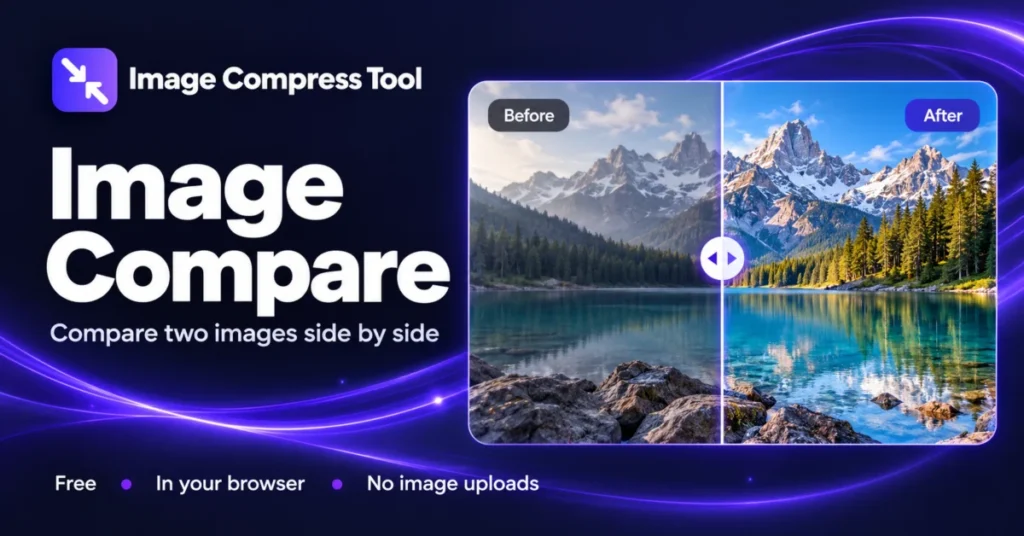
Fit two decoded images into equal preview frames to inspect edits or compression visually.
Image Compare
Compare two images online with a before-and-after slider, side-by-side view and shared zoom. See dimensions and file sizes, with no image uploads.
Ready when you are.
Get started in three steps
- Choose Image A and Image B in JPG, PNG or WebP format.
- Use the reveal slider or side-by-side mode, then magnify the preview and scroll to inspect the same area.
- Compare dimensions and file sizes. Optionally download a PNG of the comparison view.
What to expect
Each input is limited to 20 MB and 8 megapixels. Images with different dimensions are fitted with padding; the tool does not align subjects automatically. Shared zoom magnifies the preview rather than showing every original pixel.
Compare compression fairly
Use the original as Image A and the compressed copy as Image B. Check edges, small text, gradients and detailed textures. A smaller file is useful only if the visible result suits your intended display size. File-size differences alone are not a quality score.
Use the reveal slider
Move the slider to reveal more of Image B on the right. Keyboard users can focus the slider and use arrow keys. Switch to Side by side to see both full frames together.
What does shared zoom do?
Zoom magnifies the combined preview. Scroll inside it to inspect both pictures together. This is useful for visual comparison but is not a full-resolution pixel inspection tool; the preview is downscaled for responsiveness.
Why do the images not line up?
Both pictures are fitted without stretching into frames based on the first image. Different aspect ratios leave padding. Different crops or camera positions will not automatically align. Resize or crop matching copies first when you need a closer comparison.
Download or continue editing
Download comparison PNG saves the selected view at preview resolution, including the slider divider where visible. Use Photo Editor to adjust the original pictures or return to the compressor to try another quality setting.
Open Free Online Image & Photo Compressor ↗
Behind the result
Fit two decoded images into equal preview frames to inspect edits or compression visually.
Decode both files
The browser decodes each selected image locally. The tool reports the source dimensions and file sizes in decimal KB.
Render the comparison
Each image is fitted into an equal frame without stretching. Slider mode clips the right-hand image at the selected reveal position; side-by-side mode draws both frames next to each other.
Zoom and export
Zoom changes the displayed size of the combined preview, so scrolling pans both images together. PNG export saves the current comparison at preview resolution, without copying source metadata.
Explore the details: Browser encodingImage formats — MDN