
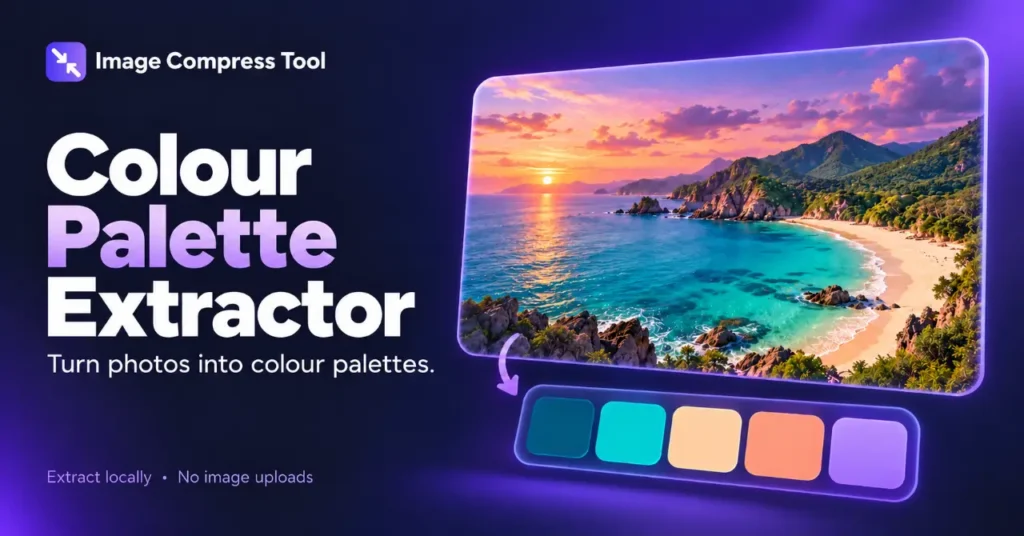
Use the Colour Palette Extractor tool
- Choose an image to extract a starting palette.
- Set Maximum colours and select Extract palette.
- Copy individual HEX values, Copy HEX palette, or Download palette to save a text file.
Open Colour Palette Extractor ↗
To create a colour palette from a photo, identify a few representative colours and give them useful roles in your design. A palette extractor can suggest colours, but a good palette is more than a list of the most common pixels.
Build a palette step by step
- Choose a photo with the mood or subject you want.
- Crop away unrelated borders or large background areas if they dominate the result.
- Extract a small set of representative colours.
- Choose a main colour, a supporting colour and an accent.
- Add suitable light and dark neutrals for backgrounds and text.
- Copy the HEX codes and test the combination in the actual layout.
Dominant colours versus accents
A landscape might be mostly pale sky and green foliage, with a small red flower. A frequency-based palette can overlook the red even though it is the most useful accent. Keep automatic results as a starting point and sample a specific detail manually when needed.
How palette extraction works
An extractor samples the image and groups similar colours. It then chooses representative values for those groups. Some algorithms count quantised colour bins; others cluster samples around colour centres. Sampling fewer pixels can improve speed but may miss very small details. The chosen method and number of colours change the output.
Why two extractors disagree
Tools may use different sampling sizes, grouping methods, transparency rules or colour spaces. One may favour large neutral regions while another emphasises saturated colours. Treat the result as a design suggestion rather than a uniquely correct answer.
Make the palette usable
Five attractive swatches do not necessarily give you a readable interface. A pale yellow that works as an accent may be unsuitable for small text on white. Test text and background combinations, keep enough contrast and avoid relying on colour alone to communicate an action or status.
For example, use a photo’s deep blue for headings, a pale neutral for the page background and its orange detail for occasional highlights. Keep body text dark enough to read instead of forcing every extracted colour into a text role.
Does compression change a palette?
Lossy compression can shift individual pixel values and introduce small variations. Extract from the original when possible, then store the chosen HEX values separately. A palette from a tiny compressed thumbnail may differ from one extracted from the full photo.
Colour palette or personal colour analysis?
This workflow finds colours in an image. It does not determine seasonal clothing palettes, identify makeup shades or promise a scientifically exact match to physical materials.