
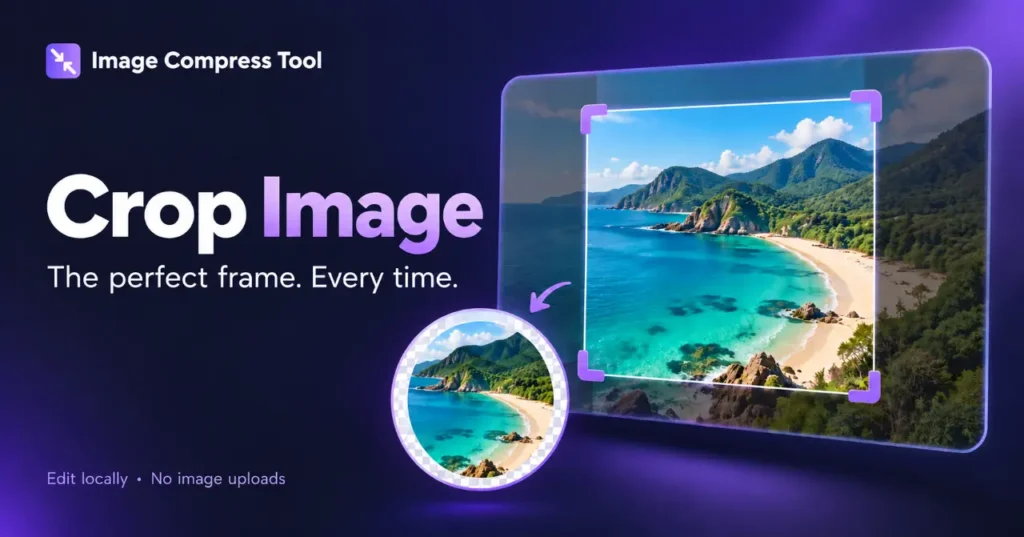
Use the Crop Image tool
- Choose image, or Try a sample to practise.
- Drag across the preview or enter Left, Top, Width and Height in pixels. Choose a ratio or Circle for transparent corners.
- Select Apply crop, check the result, then Prepare download. Use PNG for a transparent circular crop.
To crop an image, select the part you want to keep and remove the surrounding area. Cropping changes the composition of a photo. Resizing changes its pixel dimensions. Choose the crop first, then resize the result if you need a specific width and height.
How to crop a photo step by step
- Keep a copy of the original and open it in an image editor with a crop control.
- Choose a free crop or lock the selection to an aspect ratio, such as 1:1, 4:3 or 16:9.
- Move the crop rectangle over your subject. Check the edges for cut-off faces, text and important details.
- Apply the crop. If the destination requires exact pixels, resize the cropped image to those dimensions.
- Export a new file and inspect it at its final display size.
Exact dimensions versus aspect ratio
A 1:1 crop is square, but it does not specify a pixel size. Both 400 × 400 and 1200 × 1200 are square. If you need a 1200 × 800 image, use a 3:2 crop and then set the output size to 1200 × 800. Cropping a 4000 × 3000 photo to its full-width 3:2 region leaves approximately 4000 × 2667 pixels before resizing.
Do not stretch an image to make it match a different shape. Use crop-to-fill when losing an edge is acceptable, or fit-with-padding when you need to keep the whole photo. Our image resizer supports these different fitting choices.
How to crop an image into a circle
A circular crop hides pixels outside a circular boundary. The downloaded image still has a rectangular canvas; transparent corners create the circular appearance. Choose PNG, or a supported WebP export with transparency. JPG cannot preserve transparent corners, so it needs a background colour.
How cropping works
A rectangular crop selects a source region described by its left position, top position, width and height. An editor copies that region into the output canvas. Resizing during export adds a resampling step. A circular crop also uses a mask to make the outside area transparent.
Does cropping reduce file size?
It often does because fewer pixels remain, but export format and quality also affect the result. Re-encoding a crop with different settings can still produce a larger file. Compare the downloaded file size, and compress the finished image if needed.
Can I get the cropped edges back?
Keep the original or an editable project. A flattened export generally contains only the retained image area; increasing its canvas later does not restore the missing scene.