
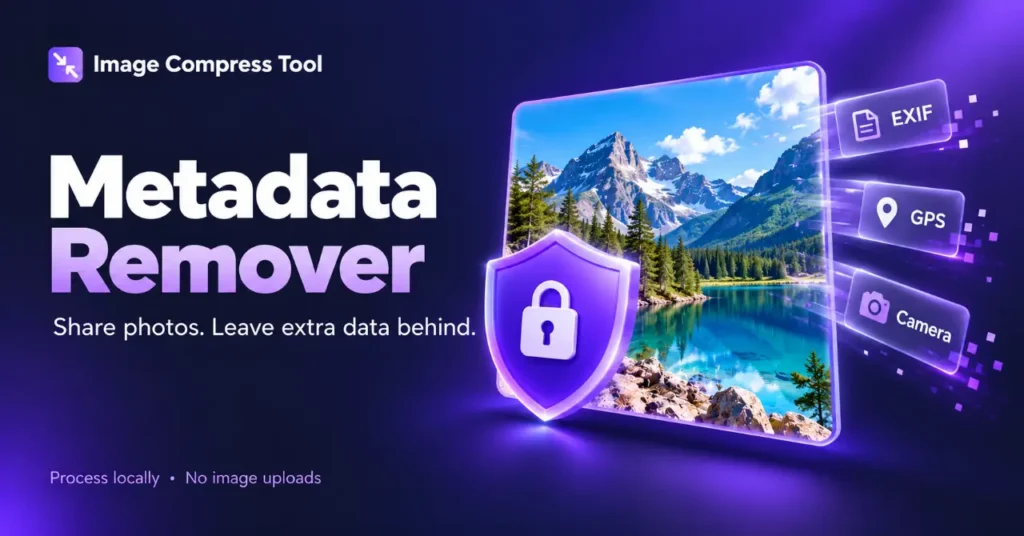
Metadata is information stored about a file, rather than the main picture, text or sound you open it to see. A photo may carry camera details, a capture time and GPS coordinates. A document may identify its author or editing software. A metadata remover helps you inspect and remove supported embedded information before sharing a copy.
For JPG, PNG and WebP photos, use the image tool below. It does not clean PDF, Word, video or audio files. Those formats need their own inspection tools, explained later in this guide.
What is image metadata?
An image file can contain several kinds of information alongside its encoded picture. EXIF is commonly used for camera settings, capture times, orientation and sometimes GPS coordinates. IPTC and XMP can carry captions, creator names, copyright notices, keywords or editing information. PNG text chunks can contain comments or generation settings. The actual fields depend on the camera, app and export settings; not every image contains personal information.
- Location: GPS coordinates may reveal where a picture was taken.
- Time and equipment: dates, camera models and software names may add context you did not intend to publish.
- Creator information: names, descriptions and contact details may identify a person or organisation.
- Display information: orientation and colour profiles help software show the image correctly.
Metadata is useful for organising photos and recording attribution. Keep an original with that information when you need it, and make a separate cleaned copy for public sharing.
How can metadata affect privacy?
A picture of an item for sale may reveal a home location through GPS even when the image itself shows no address. A document sent outside a team may include an author name or comments from earlier collaboration. These are different risks from information visibly printed in the picture or document.
Removing embedded metadata reduces one way of exposing information. It does not hide faces, house numbers, screen contents, reflections or landmarks. It also does not remove records held by a website, erase previously shared copies or make an account anonymous. Check the visible content and the destination as well as the file.
How to remove metadata from photos online
- Keep your original photo and select a JPG, PNG or static WebP copy in the Metadata Remover.
- Review the inspection results. The report can show supported metadata containers even when it cannot interpret every individual field.
- Choose whether to keep colour profiles. They are retained by default to help preserve appearance, but may contain descriptive information. Removing them can change colours.
- Select Clean images. The tool copies encoded image data without recompression and removes supported metadata containers. Necessary orientation information may remain.
- Download the cleaned copy, or use the ZIP option for a batch. Check the result report and reopen the downloaded file to confirm its appearance.
- For a sensitive share, inspect the downloaded copy with an independent metadata viewer too. Share the cleaned download, not the original still in your photo library.
Processing takes place in your browser. Downloads use neutral filenames, but your operating system will still create normal file-system properties such as a new download or modification time. A file is not literally information-free after cleaning.
Does removing EXIF remove all metadata?
No. EXIF is one metadata container. Images can also contain XMP, IPTC, text comments, colour profiles and other application data. This cleaner handles supported containers in JPG, PNG and WebP, and retains essential image structure. Its report is not a forensic guarantee. Animated images and multi-picture JPEGs are unsupported.
AI prompts or settings may be removed when stored in supported metadata containers. Cleaning does not change the image pixels, erase visible watermarks or prove that an image was not generated by AI.
How to manage location metadata on an iPhone
Apple provides controls for reviewing photo locations, removing location information and limiting its inclusion when sharing. Follow Apple’s current instructions for your device and sharing method. Removing location alone should not be treated as removing every metadata field. If an export is HEIC, this site’s cleaner does not support it; use a compatible workflow and inspect the resulting copy.
How to remove metadata from Word, Excel and PowerPoint files
In supported desktop Office apps, save a copy first. Open File → Info → Check for Issues → Inspect Document, choose the checks, inspect, then review the results before selecting the relevant removal options. Reinspect the copy afterwards. Document Inspector can find properties and some hidden content, but cannot remove every kind of information. Removing content may affect the document and cannot always be undone. Use Microsoft’s instructions for your app and version.
How to remove metadata from PDF files
A PDF can contain document properties and hidden content beyond its visible pages. Use a PDF-specific tool that supports the checks you need. Adobe Acrobat Pro provides document sanitisation; follow its guidance, save a separate output and inspect it again. Removing metadata is separate from redacting visible confidential text or images. This website’s image cleaner does not accept PDFs.
What about videos, audio and other files?
Use a cleaner designed for the actual file format, with a clear explanation of what it removes and retains. Renaming an extension does not convert the file or clean its metadata. Exporting through another app can add new metadata, so check the final file you intend to send.
Before you share
- Keep a private original and give the shareable copy a neutral filename.
- Review embedded metadata and visible identifying details separately.
- Check whether your chosen settings retain orientation or colour information.
- Open and inspect the downloaded output after your last editing or conversion step.
Further reading
- Apple: manage location metadata in Photos
- Microsoft: inspect documents for hidden data and personal information
- Adobe: sanitise PDFs and remove hidden content
Behind the result
Metadata lives in format-specific structures. Removing EXIF from a photo is different from sanitising a PDF or Office document. This browser tool supports static JPG, PNG and WebP only; check its output report rather than assuming every record is removed.
Reading the container, not re-encoding the picture
An image file can contain both compressed image data and descriptive records. This tool parses JPEG marker segments, PNG chunks or WebP RIFF chunks. It removes supported metadata records and rebuilds the container while retaining the compressed image payload. Unlike canvas conversion, it does not decode and recompress the picture.
What is removed and what can remain
Supported EXIF/GPS records, comments, text and other removable application chunks are stripped. A minimal orientation record is retained when needed to display the image correctly. Colour-profile information is retained by default, with an option to remove it; essential format information stays. The report names removed and retained blocks.
Rescanning and privacy limits
The output is rescanned using the same parser to show recognised remaining metadata. That is a useful check, not an independent forensic certification. Cleaning cannot remove visible faces, addresses or watermarks, information hidden inside image pixels, filenames or copies stored elsewhere. This tool handles supported static JPG, PNG and WebP images, not PDFs or Word documents.