
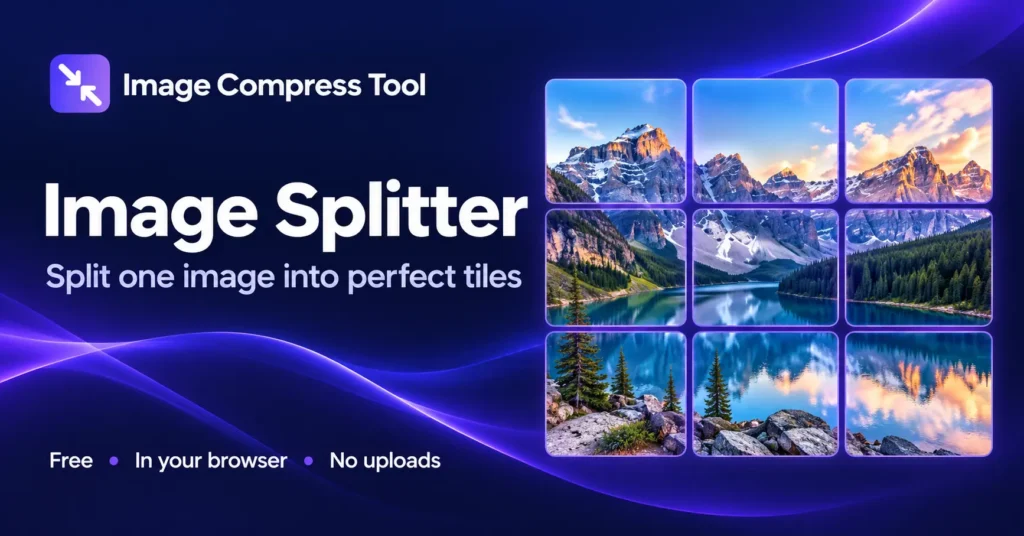
Split a picture with a pixel-preserving custom grid or use presets for cropped, resized social panels. Preview the grid, choose a format and download numbered image tiles.
Image Splitter
Split an image into a grid of tiles online. Choose rows and columns, preview the cuts and download JPG, PNG or WebP tiles in a ZIP. No uploads.
Static JPG, PNG or WebP · up to 20 MB and 8 megapixels
Choose an image to begin.
Ready when you are.
Images are processed locally, with no uploads. Download results before leaving this page. Exported images do not copy source metadata.
Step by step
- Choose a static JPG, PNG or WebP image.
- Choose Custom Grid for 1–10 rows and columns, or select a social layout preset. Check the cropped preview and tile dimensions.
- Choose PNG, JPG or WebP and prepare downloads. Save individual tiles or the complete ZIP.
Check the result
Custom Grid keeps every source pixel and does not resize; uneven divisions can differ by one pixel. Presets centre-crop the full composition and resize it to exact tile dimensions without stretching. Small sources may look soft when enlarged. PNG/WebP can keep transparency; JPG fills it white.
Can I split horizontally or vertically?
Yes. Use one row for a horizontal strip of tiles or one column for a vertical strip.
Are tiles numbered in order?
Yes. Filenames identify the row and column, starting at the top left.
Are all tiles exactly the same size?
Preset tiles have the exact dimensions listed in the controls. Custom Grid tiles are equal only when source dimensions divide evenly; otherwise they differ by at most one pixel.
Keep your original
The tool creates new downloads without changing the file you selected. Processing happens in this browser tab, and exported images do not copy the source metadata. Keep your original if you might need a different result later.
Example: an image that does not divide evenly
A 1001-pixel-wide image split into three columns produces widths of 333, 334 and 334 pixels. No column is dropped. To require identical tile sizes, resize or crop the source to dimensions divisible by your chosen grid first.
Choose a format
Use PNG for transparency or graphics with sharp text. JPG is useful for photographs when some compression loss is acceptable. WebP supports transparency and compact photo files where the destination accepts it. Tile grid lines and preview numbers are not included in your downloads.
Choose a layout preset
Custom Grid keeps all source pixels. Every preset below centre-crops the overall composition to fit its layout before resizing. Inspect the preview: important faces or text near an edge may be cut off.
- Instagram square grid: 3 rows × 3 columns, nine 1080 × 1080 posts.
- Instagram portrait grid: 2 rows × 3 columns, six 1080 × 1440 posts.
- Instagram carousel: one row of three or five 1080 × 1350 slides.
- Google Play panels: one row of three or four 1080 × 1920 JPG panels from a prepared app screenshot composition.
- Square tiles: 2 × 2 at 1080 × 1080. Panorama: three 1920 × 1080 landscape panels.
Instagram grid or carousel?
A profile grid uses separate posts. For a new, unpinned mosaic, publish the last numbered tile first and work backwards. Existing posts, pinned posts and profile-preview crops can affect alignment; check the profile preview. A carousel puts all slides in one post: select them in numbered order from left to right.
Prepare your source image
For a three-slide portrait carousel, a 3240 × 1350 source matches the full layout. Three Google Play portrait panels match 3240 × 1920. Matching the layout ratio avoids centre-cropping. The tool currently accepts up to 8 megapixels; large grids may therefore require enlargement. Start with the sharpest source within that limit, and inspect the exported tiles at full size.
Google Play screenshot panels
Use artwork that accurately shows your app. This preset splits an already-designed screenshot composition; it does not create device mockups or certify store compliance. JPG gives opaque panels. Review the current store rules before publishing.
Preview a numbered split
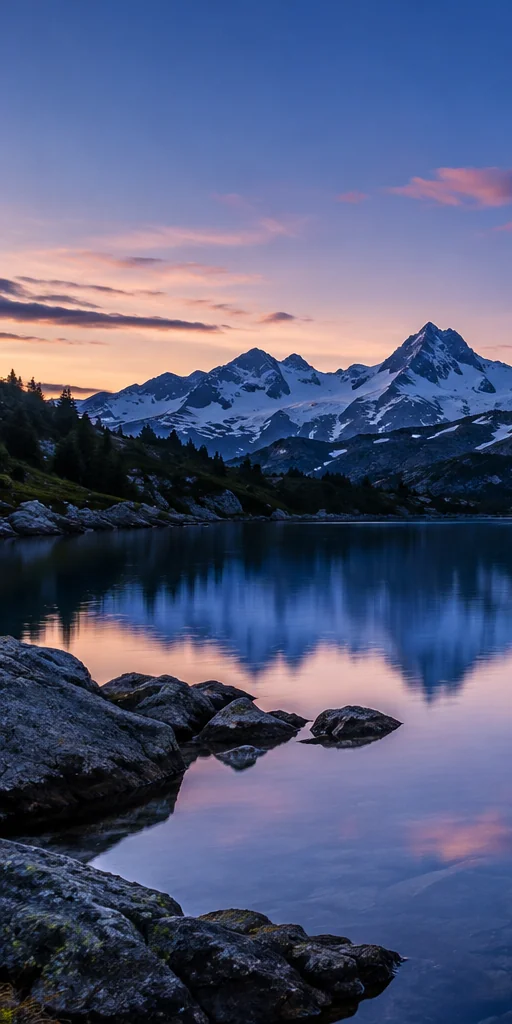
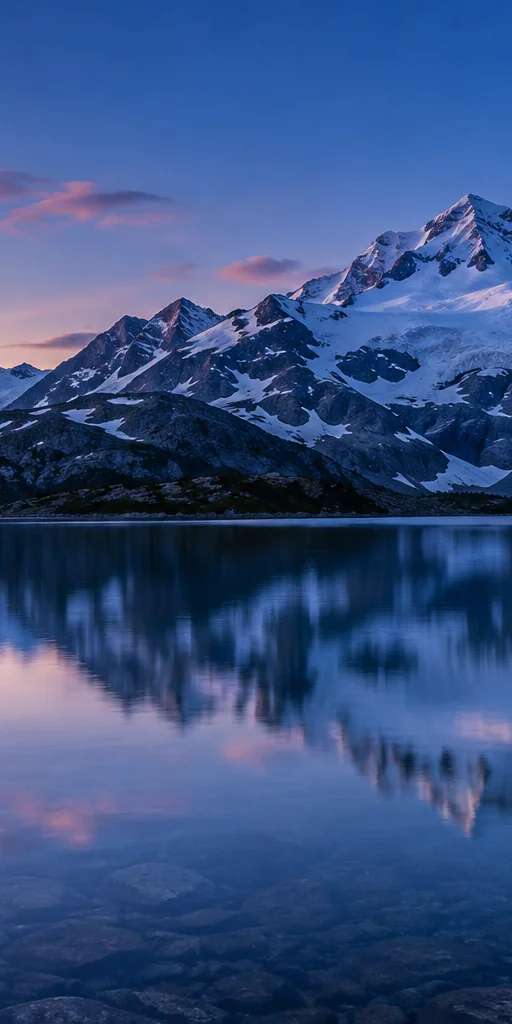
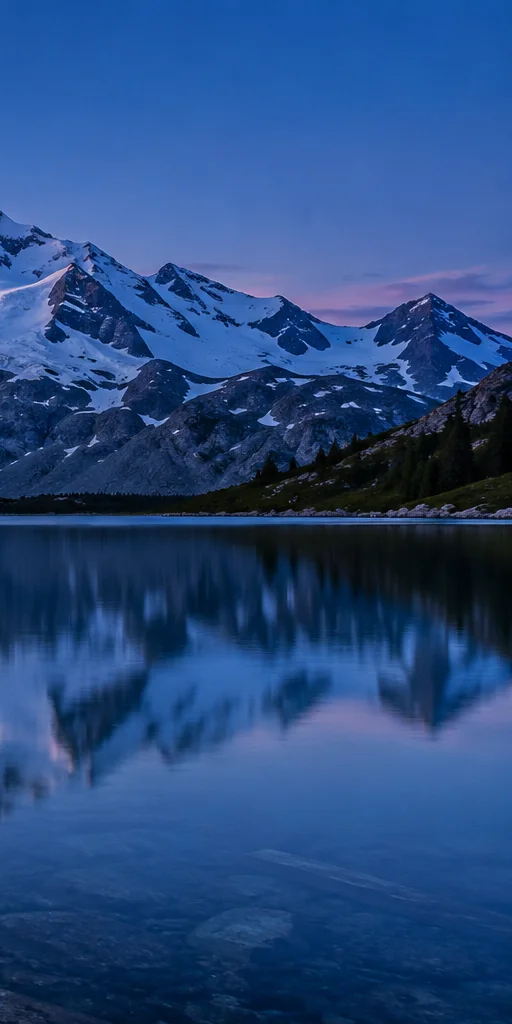
Example: a 1536 × 1024 AI-generated sample split into three 512 × 1024 tiles with Custom Grid. No pixels are cropped or resized.
The labels below show download order, not content added to the exported tiles. Use Image Resizer or Crop Image to prepare the source; Image Combiner can join panels again. Compress the exported files when your destination has a file-size limit.
Behind the result
Custom Grid divides the original pixel grid. Presets first choose a centred crop that matches the complete layout, then resample the panels to their output dimensions.
Calculate boundaries
Custom Grid rounds boundaries down along the original width and height. Presets calculate boundaries in the output layout and map them back to a centred source crop. Adjacent panels share the same composition.
Export each tile
Custom Grid exports each source rectangle at its original pixel size. Presets resample each mapped rectangle to the listed width and height. Nothing is stretched; image edges outside the centred crop are discarded. Preview grid lines and labels are not exported.
Build a ZIP
Each tile is named with its row and column and packaged locally for downloading. JPG/WebP quality affects encoding, not grid geometry.
Explore the details: Browser encodingImage formats — MDN