
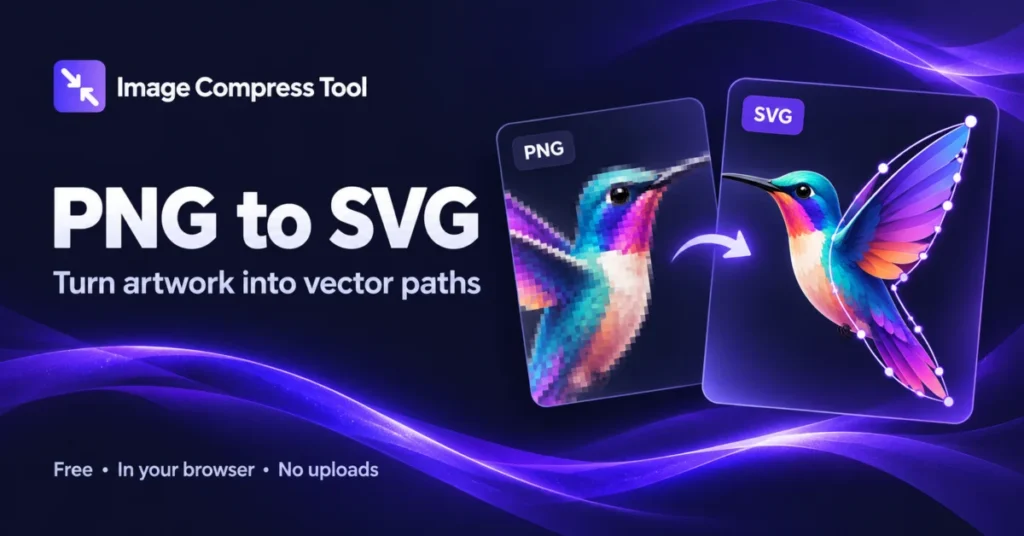
To convert PNG to SVG, select a PNG image, choose the number of colours and tracing detail, and prepare the vector preview. Inspect the shapes, then download the SVG. This converter traces real vector paths locally in your browser.
PNG to SVG
Convert PNG to SVG online with adjustable colours and tracing detail. Create vector paths from simple logos and artwork, entirely in your browser.
Ready when you are.
How to convert PNG to SVG in three steps
- Choose a clean PNG logo, icon or illustration. Use a source with clear edges and enough resolution to show the shapes.
- Start with 8 colours and balanced detail. Trace the image, then adjust the settings if important shapes are missing.
- Inspect the SVG preview, download the file and check it in your intended app.
PNG versus SVG
PNG stores a grid of pixels. SVG describes shapes with paths and fills. Tracing builds an approximation of the pixel image; it does not recover the original design file, font or editable text.
Choose the number of colours
Use fewer colours for simple logos and flatter results. More colours can keep extra shades but increase the number of shapes and file size. Gradients become bands of colour, so photographs may look posterised.
Choose tracing detail
Smooth tracing removes more small regions and simplifies curves. Detailed tracing keeps finer shapes but may also retain noise. Balanced is a useful starting point. Tiny lettering may need to be recreated in a vector editor.
What happens to large PNG files?
Choose a PNG up to 20 MB and 8 megapixels. Before tracing, the tool reduces the longest edge to 512, 768 or 1024 pixels, preserving the aspect ratio. This keeps processing manageable but can discard small details.
Does PNG to SVG keep transparency?
The tracing engine includes opacity in its colour palette. Transparent regions can remain transparent, but antialiased edges and partial opacity may change during tracing. Check the preview on the checkerboard.
Is the SVG smaller?
Not always. A simple logo may become compact vector paths. A detailed photo can create a large SVG with many shapes. Reduce colours or tracing detail if the result is too complex.
Is this suitable for cutting machines?
Do not assume a traced file is cut-ready. Paths may overlap or contain small fragments. Open it in your cutting software, clean up the paths and check the intended size before cutting.
Keep your source image
Tracing changes the appearance and does not preserve source metadata. Keep the original PNG. If you need a pixel copy of your vector result, use SVG to PNG.
Behind the result
A raster image becomes a collection of vector paths through local colour reduction and contour tracing.
Decode and resize
The browser decodes PNG into pixels. Large inputs are reduced to a maximum 1024-pixel edge to keep tracing practical on your device.
Group colours
ImageTracer groups similar pixel colours into a palette. Fewer colours usually produce simpler artwork; more colours may preserve more detail and increase SVG size.
Trace shapes
Contours are approximated with line and curve segments. Detail settings control fitting tolerance and removal of small regions.
Write SVG paths
The result is standalone SVG path data with colours and opacity. It does not embed the source PNG or preserve its metadata.
Explore the details: Browser encodingImage formats — MDN