
Image editing & compression guides.
Clearer answers.
Learn how to compress, convert and resize images, remove backgrounds and clean metadata—with practical steps and tools you can use as you go.
Already know what you need? Open the compressor ↗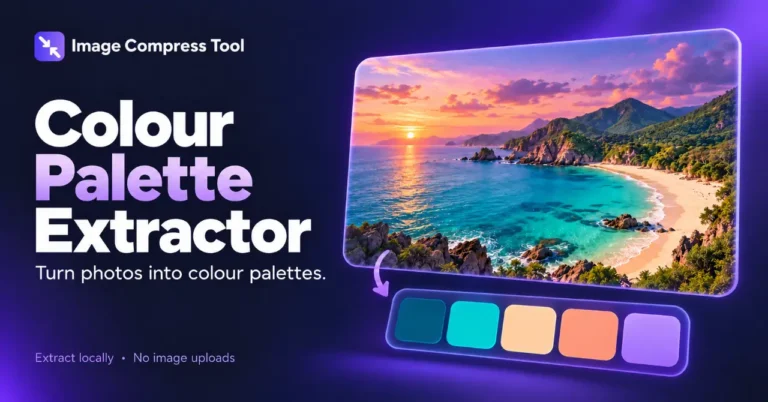
How to Create a Colour Palette from a Photo
Turn a photo into a useful colour palette. Learn dominant colours, accents, HEX codes and why automatic extraction needs a final visual check.
Read the guide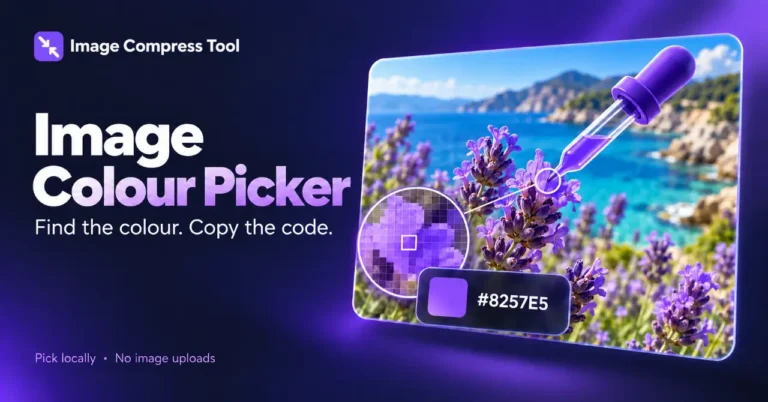
How to Pick a Colour from an Image: HEX and RGB
Find a colour in a photo and understand its HEX and RGB values. Learn where to sample and why edges, transparency and colour profiles affect results.
Read the guide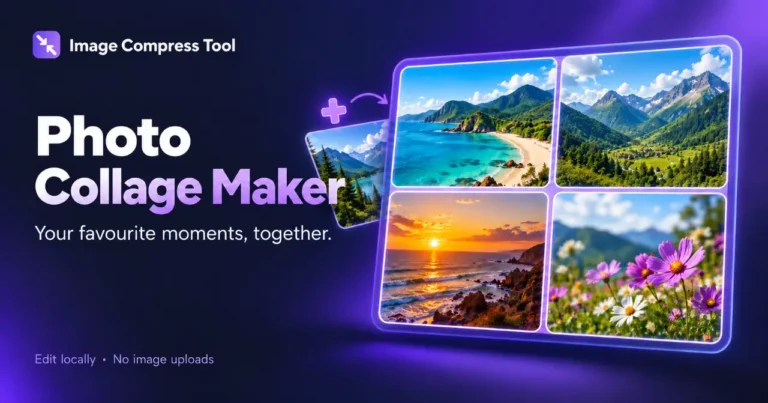
How to Make a Photo Collage with a Clean Grid
Arrange photos in a collage with consistent spacing and useful export dimensions. Learn cropping, grid sizes, borders and compression for sharing.
Read the guide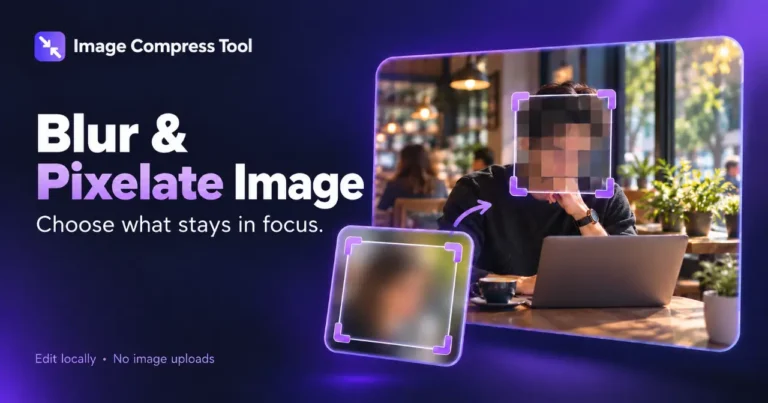
How to Pixelate an Image or Part of a Photo
Create a blocky pixelation effect on a photo or selected region. Learn block size, export choices and the limits of pixelation for hiding details.
Read the guideHow to Blur Part of a Picture: Faces, Text and Backgrounds
Learn how to blur selected areas of a photo, choose blur strength and check the export. Understand when solid redaction is safer than blur.
Read the guide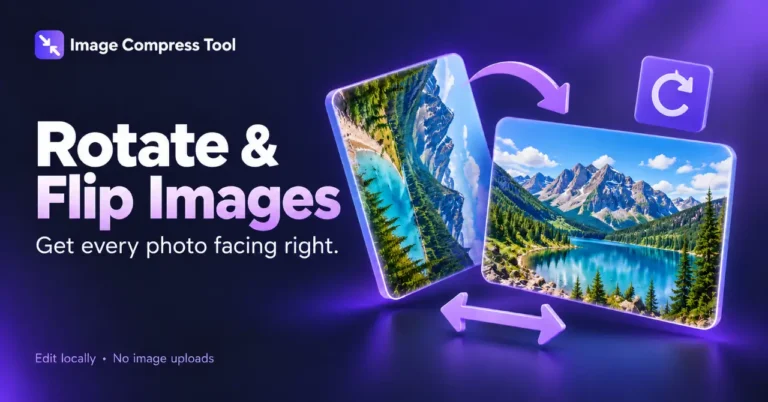
How to Flip an Image Horizontally or Vertically
Learn how to flip a photo horizontally or vertically, fix mirrored lettering and understand how flipping differs from rotating an image.
Read the guideHow to Rotate an Image Without Cutting Off the Edges
Rotate a photo by 90 or 180 degrees, or straighten a tilted image. Learn why canvas size, transparent corners and export settings matter.
Read the guide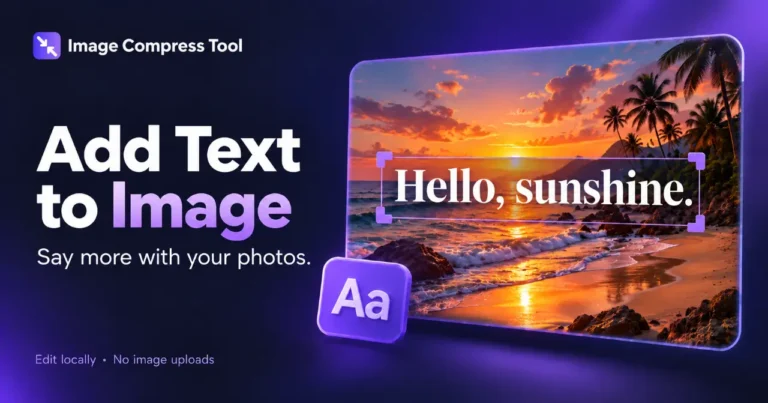
How to Add Text to an Image and Keep It Readable
Add captions, labels or a headline to a photo. Learn text placement, contrast, outlines and export choices for clear lettering at the final size.
Read the guide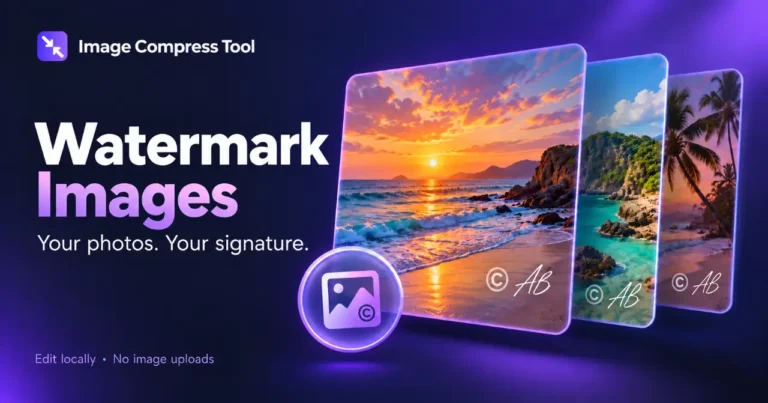
How to Watermark Photos with Text or a Logo
Learn how to apply a watermark to photos using text or a transparent logo. Choose size, placement and opacity, then check the exported image.
Read the guidePut what you learn into pixels.
Your images stay on your device.